To photograph fabric for an AI garment preview, lay it flat and wrinkle-free, shoot from directly above in soft daylight, and let the fabric fill most of the frame. Show at least one full repeat of the print. The AI copies colour, print scale and texture from this one photo, so every flaw in the photo becomes a flaw in the garment.
This guide is written around Preloom, which turns a fabric photo into a stitched-garment preview, but the same rules hold for any AI tool that works from a photo of cloth.
The method, step by step
- 1
Press the fabric and lay it flat
Creases read as part of the design. An iron, or even smoothing it by hand on a table, removes folds the AI would otherwise turn into pleats or shadows.
- 2
Use indirect daylight
Stand near a window but out of direct sun. Direct sun blows out light colours and adds hard shadows; indoor bulbs shift the colour yellow or blue. Turn the flash off: it flattens texture and adds glare on silk, satin and anything with zari.
- 3
Shoot from directly above
Hold the phone parallel to the fabric. An angled shot makes the print shrink towards the far edge, and the preview inherits that distortion as an uneven print scale.
- 4
Fill the frame, with a full repeat
Get close enough that the fabric fills most of the photo, but far enough to show the whole motif at least once. For a border or pallu, take a second photo of it: Preloom accepts several fabric images for one design.
- 5
Check the colour against the cloth
Before uploading, compare the photo on screen with the real fabric. If they differ, retake it in better light rather than correcting it with a filter, which tends to shift every colour at once.
What a good fabric photo produces
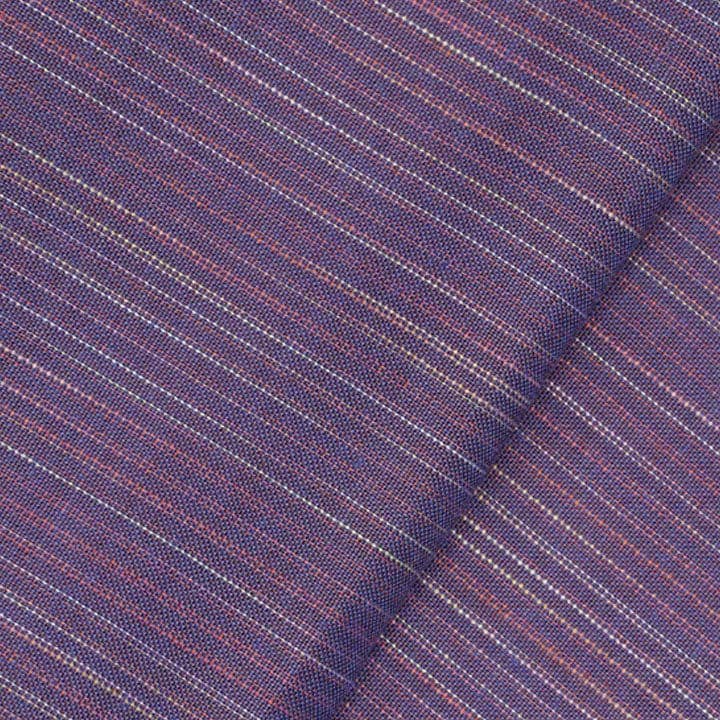 Fabric
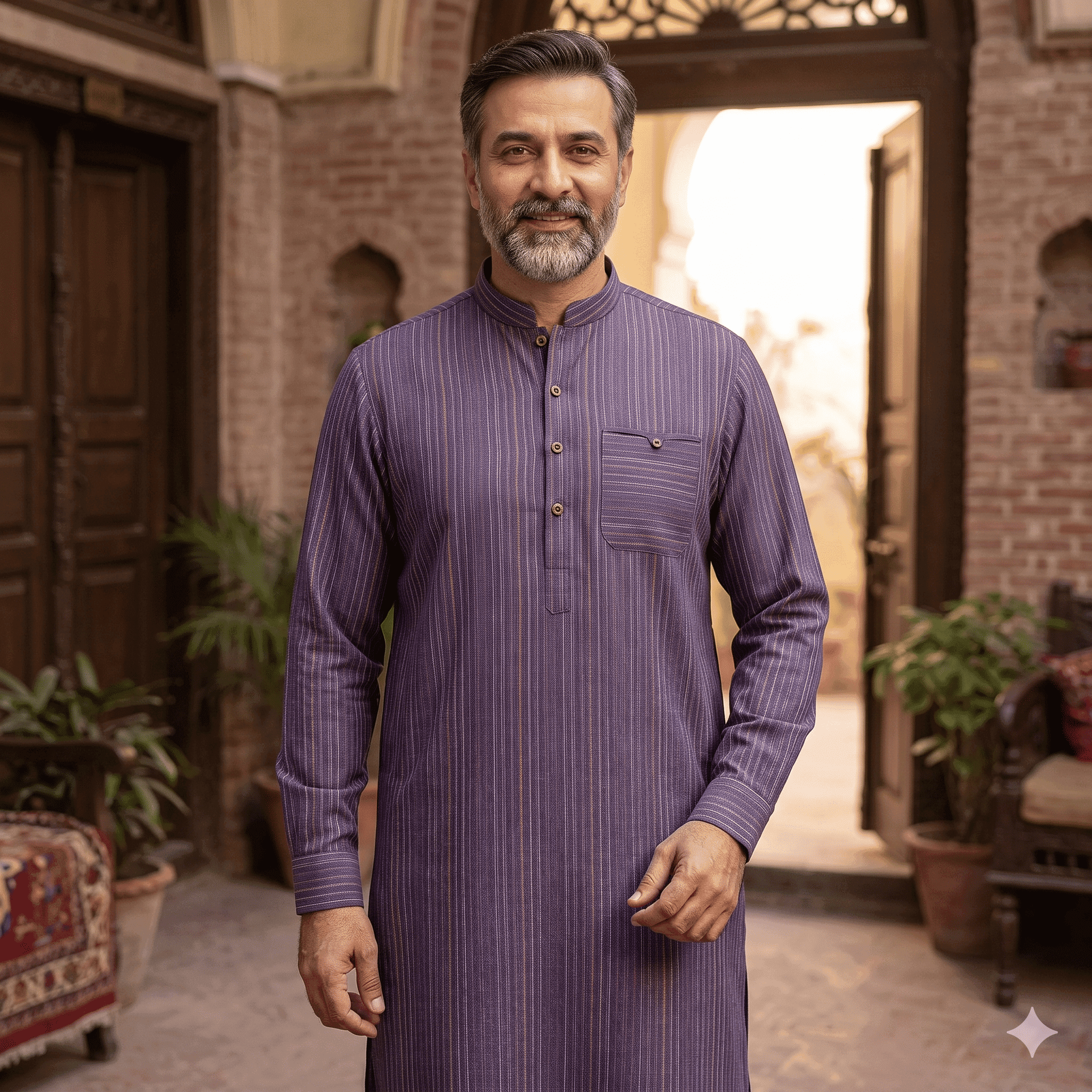 Preloom output
Fabric-specific tips
| Fabric | Common problem | What to do |
|---|---|---|
| Lawn and cotton prints | Print looks too large or too small on the garment | Include a full repeat, and something for scale at the edge if the motif is very large |
| Chiffon and georgette | Sheer fabric picks up the colour of the table | Lay it on plain white paper or cloth, or fold it into two layers |
| Silk, satin, velvet | Glare hides the colour | Shoot further from the window and turn the fabric until the shine is minimal |
| Embroidered or zari work | Detail lost in a wide shot | Upload one wide shot of the whole panel and one close-up of the work |
| Khaddar and textured weaves | Texture flattened | Use light from the side, not from behind the camera |
What happens to the photo after you upload it
Preloom compresses each image in the browser to 2 MB or less, then normalises it on the server: it is capped at 2048 pixels on the long side, any transparent background is flattened onto white, and it is converted to a high-quality JPEG. That keeps uploads fast on mobile data without throwing away the detail the AI needs.
Fabric you upload is saved to your fabric library, so you photograph a swatch once and reuse it in as many designs as you like. Saving a fabric costs no credits; only generating a design does.
Quick checklist before you upload
- Pressed and flat, no folds
- Indirect daylight, flash off
- Camera parallel to the fabric
- At least one full repeat of the print in frame
- Separate photos of borders, pallu or embroidery
- Colour on screen matches the cloth in hand